
Limited Access API Keys
The information in this article is an advanced topic within the NetSapiens platform. Please note that assistance for this article is outside NetSapiens support for Facilities-Based customers. For Hosted customers, if a limited access API key is required for a NetSapiens integration, then we will create it for you.
Instructions for creating an API key in the NetSapiens Admin UI are located here, "API Keys in the Admin UI (v44+)".
After you create an API key, a modal will pop up with the full key. This is the only time you can see it! If you forget to copy it before you exit the modal, then you will have to create another key because you will be unable to access that full key again.
Create a Key with Limited Access
API keys can be provisioned with limited access in the Admin UI in various ways, such as restricting IP addresses it can access, assigning it a lower user scope (which limits its permissions), restricting its domain access, and choosing to give the key read-only access.
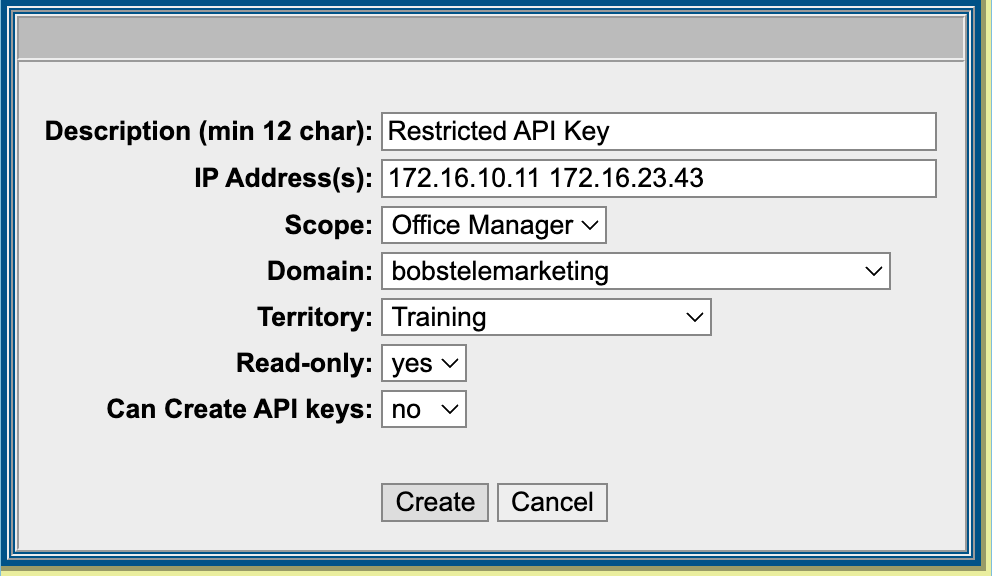
The API key below is highly restricted.
- Limited to two IP Addresses. The key can only be used from these IPs.
- Limited by the Office Manager Scope. This key can only be used to attempt modifications within the bobstelemarketing domain (with Office Manager permissions).
- Limited by Read-only. This API key can only view platform information, it cannot add, modify, or delete.
- Unable to Create API keys. This key cannot make new API keys.
In the event that additional limitations are required, backend configuration is possible using the NetSapiens API. This can be done via the "allowed-models" parameter when creating an API key. To see an example of directly performing this restriction via CLI with a Curl command, see the section below.
Limit the Key to Allowed-Models
This section is an example where we limit the key to Allowed-Models.
For this example, we explain how to limit the CAIRO (a Crexendo Marketplace app) key to messaging models. This is our recommended approach for CAIRO deployment. "NetSapiens Knowledge Base - CAIRO - Deployment Instructions"
-
First you need your unique bearer token. A bearer token can either be an Access Token ("API Docs: Get Access Token From User/Pass") or a Super User API key ("API Keys in the Admin UI (v44+)").
-
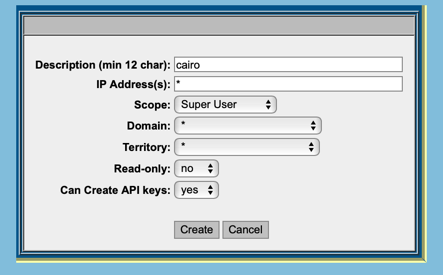
In the command below, we're using a Super User API key as the bearer token, so we created a Super User API key with "can create API keys" enabled.
-
No matter if you're using an Access Token or an API key, it needs to follow the line called, "authorization: Bearer". Replace the key in the example with your unique bearer token.

-
The example curl command creates a new API key with limited access to messaging models.

If copying this example, remember to replace the "url" with YOUR Core's URL and the key after "authorization: Bearer" with YOUR unique bearer token.
Note that if you use an API key as your bearer token for the sole purpose of running this command, you can safely delete that key after running the command since it's no longer needed.
curl --request POST \
>      --url https://the.core.you are.ssh.into.com/ns-api/v2/apikeys \
>      --header 'accept: application/json' \
>      --header 'authorization: Bearer
nss_KXE6ATDXO53VtXXXXXXXXXXXXXNrOIpuOAUGP6s3aab87f33d' \
>      --header 'content-type: application/json' \
>      --data '
> {
>   "reseller": "*",
>   "description": "Trying to create an SU key from CLI",
>   "user-scope": "Super User",
>"allowed-models": [
>     "message",
>     "messagesession"
>   ],
>   "user": "*",
>   "domain": "*",
>   "ip-address": "*",
>   "readonly": "no",
>   "can-create-keys": "no"
> }
> '
Updated 14 days ago